Ecommerce Profit Pulse · Setup
Export your Amazon reports
Profit Pulse needs two files from Seller Central to work out what you actually earned. Both are free, both take about a minute to request, and you only need to learn this once. Here is exactly where they live.
.txt
Transaction report .csv
Orders report
Every order in the month — what sold, how much of it, and how each order ended up. Amazon calls this the All Orders report.
-
1
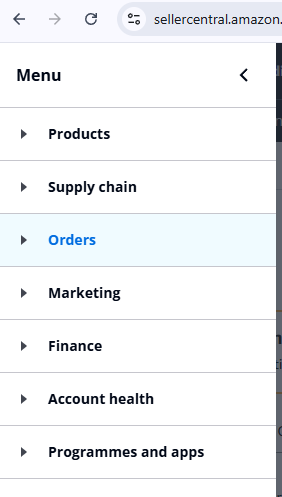
Open the menu and choose Orders
Top-left of Seller Central. The menu slides out over the page.
-
2
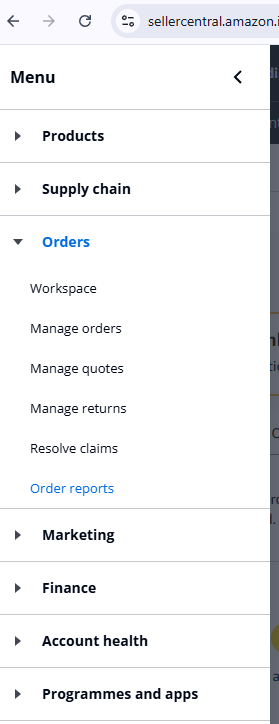
Choose Order reports
The last item under Orders, below Resolve claims.
-
3
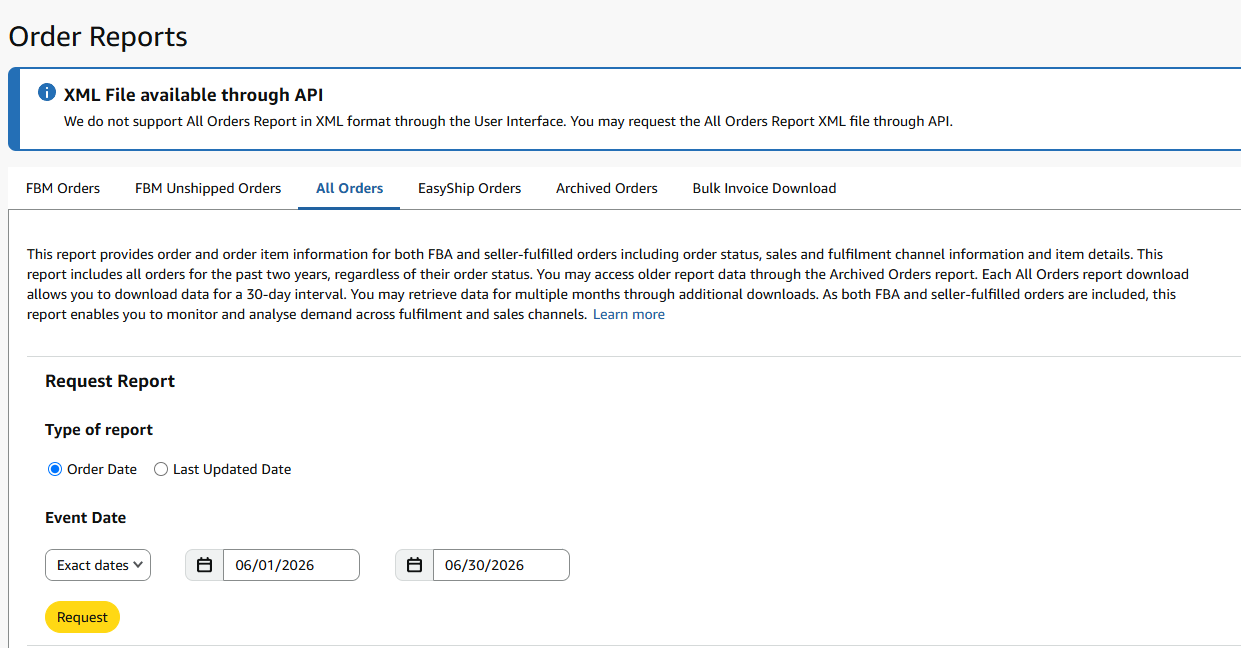
On the All Orders tab, set the month and press Request
Type of report: Order Date. Event Date: Exact dates, set to the month you want — 1 June to 30 June, say. One report covers a 30-day interval, so do one month at a time.
-
4
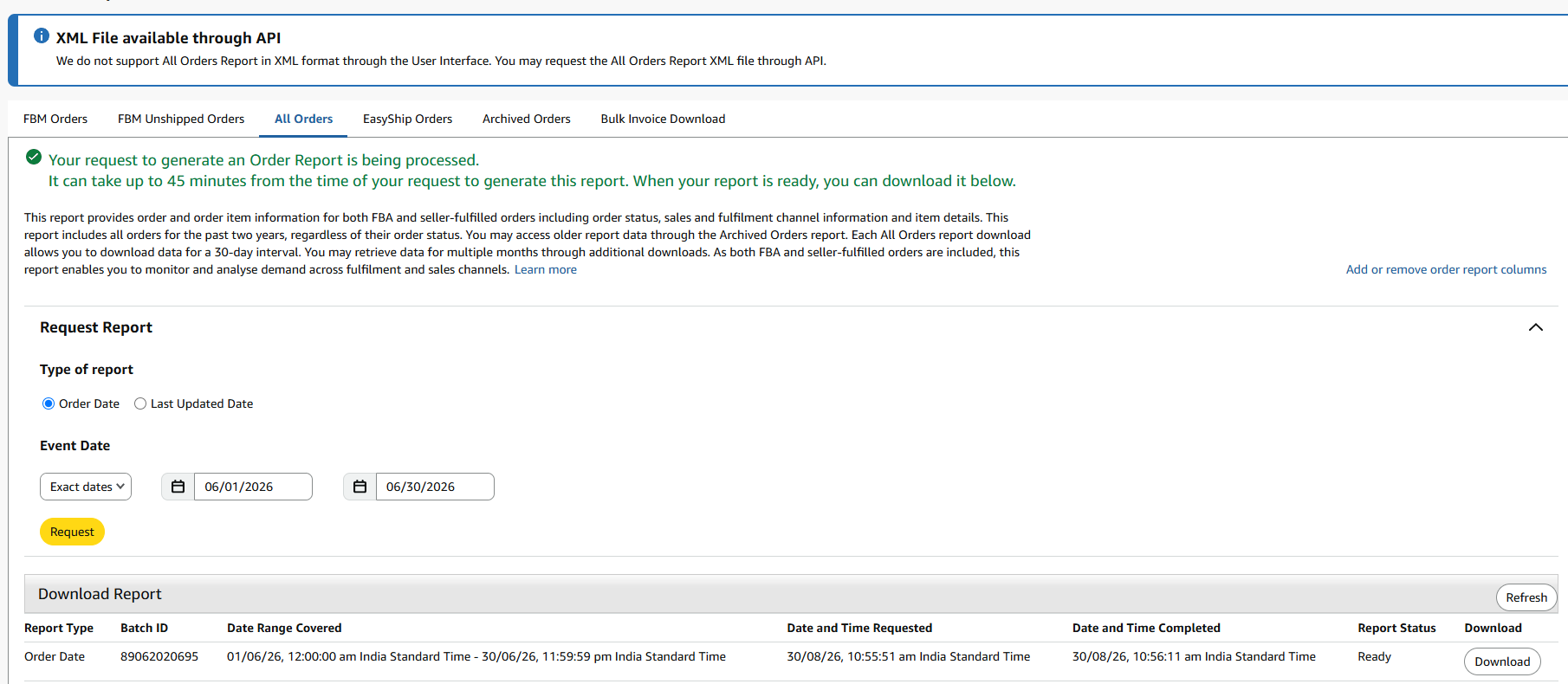
Wait for Ready, then press Download
Amazon warns it can take up to 45 minutes; in practice it is usually a minute or two. Press Refresh if the status has not moved. You get a .txt file named as a long number — that is the right file, odd as it looks.
Transaction report
Every rupee that moved — what Amazon credited you, every fee it charged, the GST, TCS and TDS, and your advertising spend, which hides in this file too.
-
1
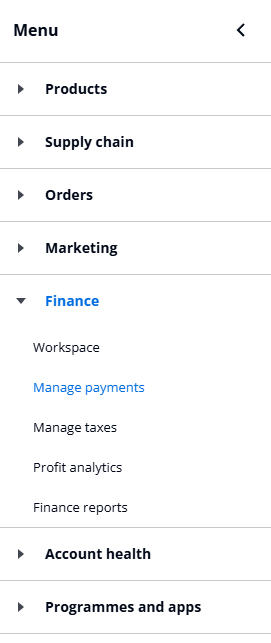
Open the menu and choose Finance → Manage payments
Not Finance reports — Manage payments is the one holding the repository.
-
2
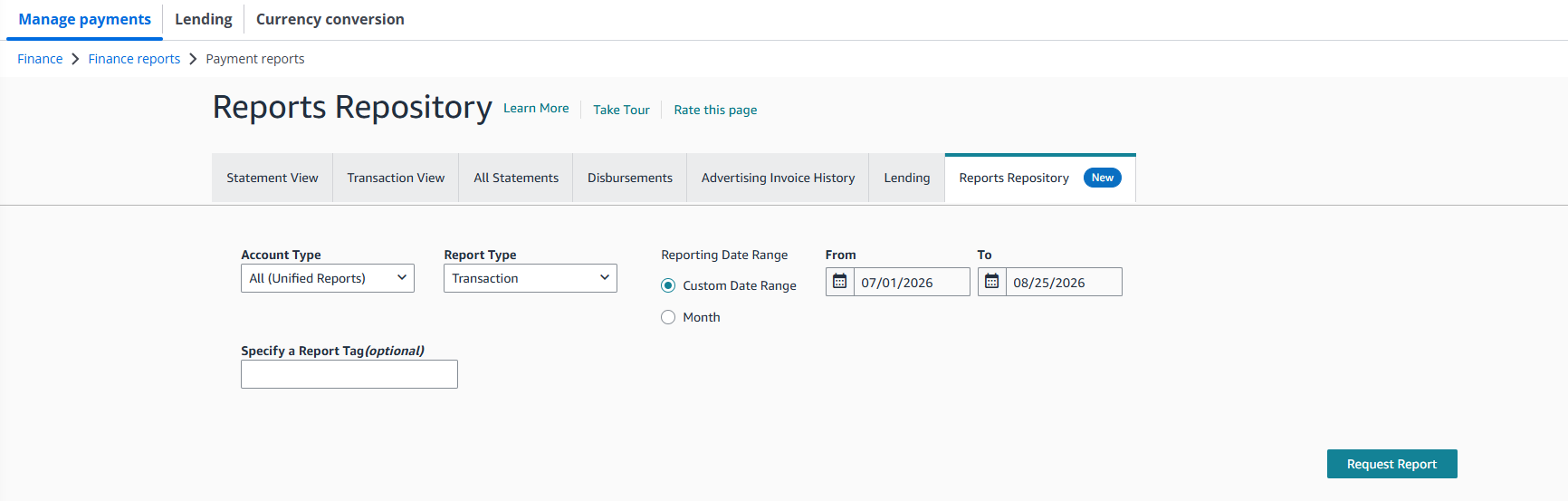
On the Reports Repository tab, request a Transaction report
Account Type: All (Unified Reports). Report Type: Transaction. Reporting Date Range: Custom Date Range — and read the next section before filling those dates in, because this is the step people get wrong. Then press Request Report and download the .csv once it appears.
The one thing to get right
Run the transaction report past the end of the month
Amazon pays out roughly 15 days after delivery, and returns settle later still. A transaction report that stops the day your order month ends is missing most of that month’s money — and your profit will read far lower than it really was. Profit Pulse warns you when it spots this, but it is easier to export it right the first time.
1 June → 30 June
Just the month you want to understand.
1 June → ~20 July
Same start, roughly three weeks longer, so the month’s money has landed.
Then open Profit Pulse
- Drop both files in on the Upload reports screen. It shows the row count of each before you commit.
- Enter your cost price per SKU — what each unit costs you landed. Saved on your machine, so you do this once per SKU, not once per month.
- Read the dashboard. Net profit first, then what needs your attention, then the detail behind it.